
Ask most small teams how they manage passwords and you’ll hear some familiar answers. A shared spreadsheet. A notebook in a drawer. The same password with a different number at the end for every account. Logins sent over WhatsApp when someone new joins.
We understand why. Businesses use dozens of online tools, and nobody can remember a unique, strong password for each one. But reused and shared passwords make it much easier for one leaked login to turn into access to everything else. The good news is that two tools solve most of this: a password manager and two-factor authentication. Here’s how our team helps small businesses set them up.
What a password manager actually does
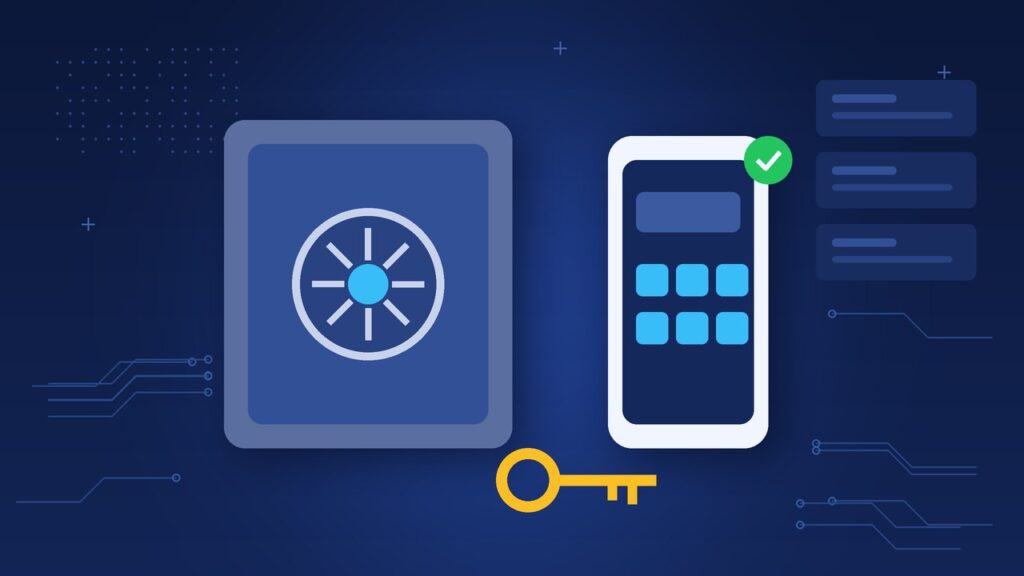
A password manager is an encrypted vault for your logins. You remember one strong master password, and the manager remembers the rest. It can generate long random passwords, fill them in automatically on the right websites and sync them across your devices.
For businesses, team plans add shared folders. Instead of sending the social media login over chat, you share the “Marketing” folder with the people who need it. When someone leaves, you remove their access in one place.
Well-known options include Bitwarden, 1Password, Dashlane and Keeper, among others. Most offer business plans with admin controls. Compare features and pricing for your team size, and check where data is stored if that matters to your clients.
Rolling out a password manager step by step
Introducing a new tool works best when it’s planned. Here’s the order we usually follow:
- Choose the tool and set up the business account. Assign at least two administrators so you’re never locked out if one person is unavailable.
- Create shared folders by function, such as Finance, Marketing, Website and Suppliers, rather than one giant shared vault.
- Move the most important logins first: email, banking, domain registrar, website hosting and accounting software.
- Invite the team and help them install it on their computer browser and phone. A short walkthrough saves a lot of confusion.
- Change weak or reused passwords as you move each account in, using the manager’s generator.
- Delete the old spreadsheet or notes once everything has moved, so there’s no forgotten copy lying around.
Expect the transition to take a couple of weeks of small steps. That’s normal.
The master password matters most
Because the master password unlocks everything, it needs to be strong and never reused. A good approach is a passphrase: several random words strung together, which is long but still memorable. Each person should know theirs is never to be shared, written on a sticky note or saved in a browser.
Also check the manager’s account recovery options before you need them. Understand how an administrator can help someone who forgets their master password.
Adding two-factor authentication
Two-factor authentication, often called 2FA, adds a second check when someone logs in. Even if a password is stolen, the attacker also needs the second factor, which is usually something on your phone.
Common types, from weaker to stronger:
- SMS codes: better than nothing, but text messages can be intercepted or redirected in some attacks.
- Authenticator apps: apps like Google Authenticator, Microsoft Authenticator or the one built into some password managers generate a fresh code every 30 seconds.
- Passkeys and security keys: newer methods that use your device or a physical key and are designed to resist phishing.
Use the strongest option each service supports, and turn it on first for the accounts that would hurt most if compromised.
Which accounts to protect first
If you’re short on time, prioritise these:
- Business email, since it’s used to reset almost every other password
- Banking and payment gateways
- Domain registrar and website hosting
- Accounting and payroll software
- Social media and advertising accounts
- Cloud storage holding client files
Don’t forget backup codes
When you enable 2FA, most services offer backup or recovery codes. Store these securely, ideally in the password manager or another protected location. If a phone is lost, broken or replaced, those codes are what let you back in.
For shared business accounts, think about whose phone receives the codes. If it’s tied to one employee’s personal number and they leave, you have a problem. Authenticator apps or password managers that support shared 2FA can help here.
Make it a habit, not a one-off
Add password manager setup and 2FA to your onboarding checklist for new staff, and to your offboarding checklist for people leaving. Revisit the vault every few months to remove accounts you no longer use and check that important services still have 2FA turned on.
Wrapping up
A password manager and two-factor authentication won’t make a business invulnerable, but together they close off some of the most common ways attackers get in. They also make everyday work easier, since nobody needs to hunt for logins anymore.
Growing an IT business? xRapid Media LLP is a High Tech B2B Marketing company. We help cybersecurity vendors and MSSPs find and engage the right B2B buyers through data-driven prospecting, verified contact data, account-based campaigns, email and LinkedIn outreach and appointment setting. Call +91 9767196309, email [email protected] or book a free B2B marketing consultation.